Create
Build a packing label.
Ask for a part number, lot and barcode. Start from a template, let the agent shape the document, then inspect the rendered result.
AI-first platform · native MCP · your agents
Print fully automatically from business data, or let operators print manually through guided forms. Create labels and workflows with AI copilots, and connect your own agents through native MCP.
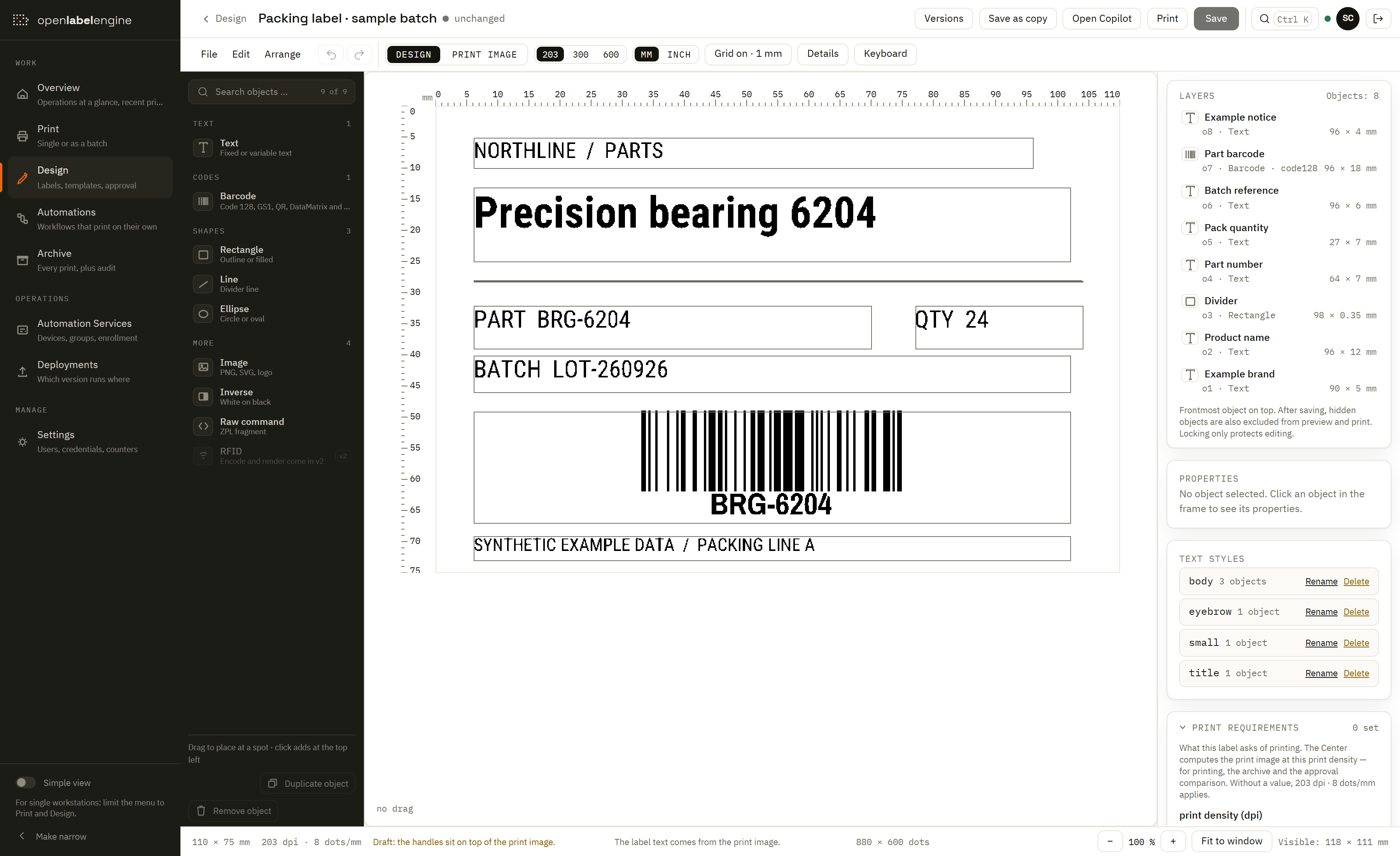
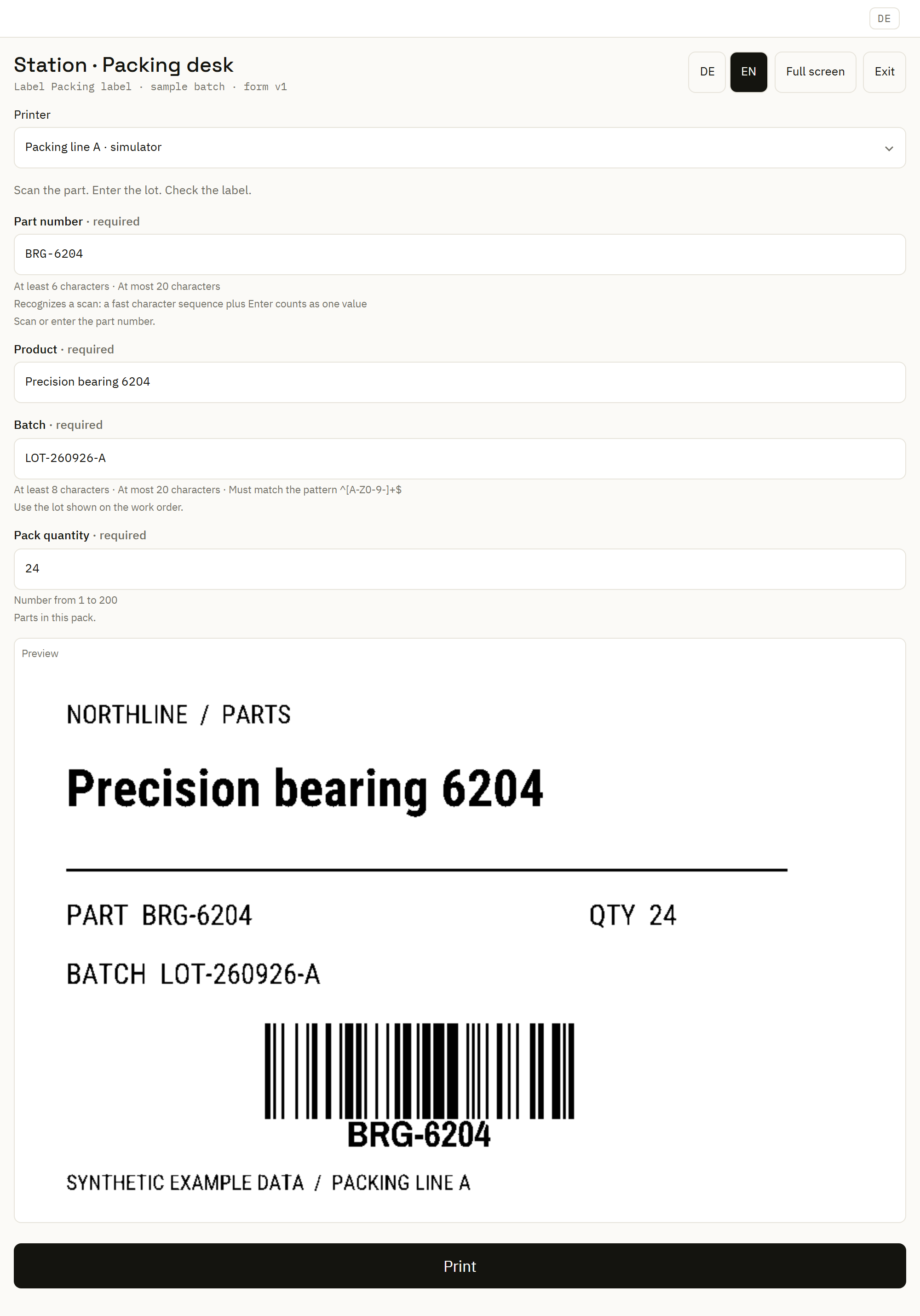
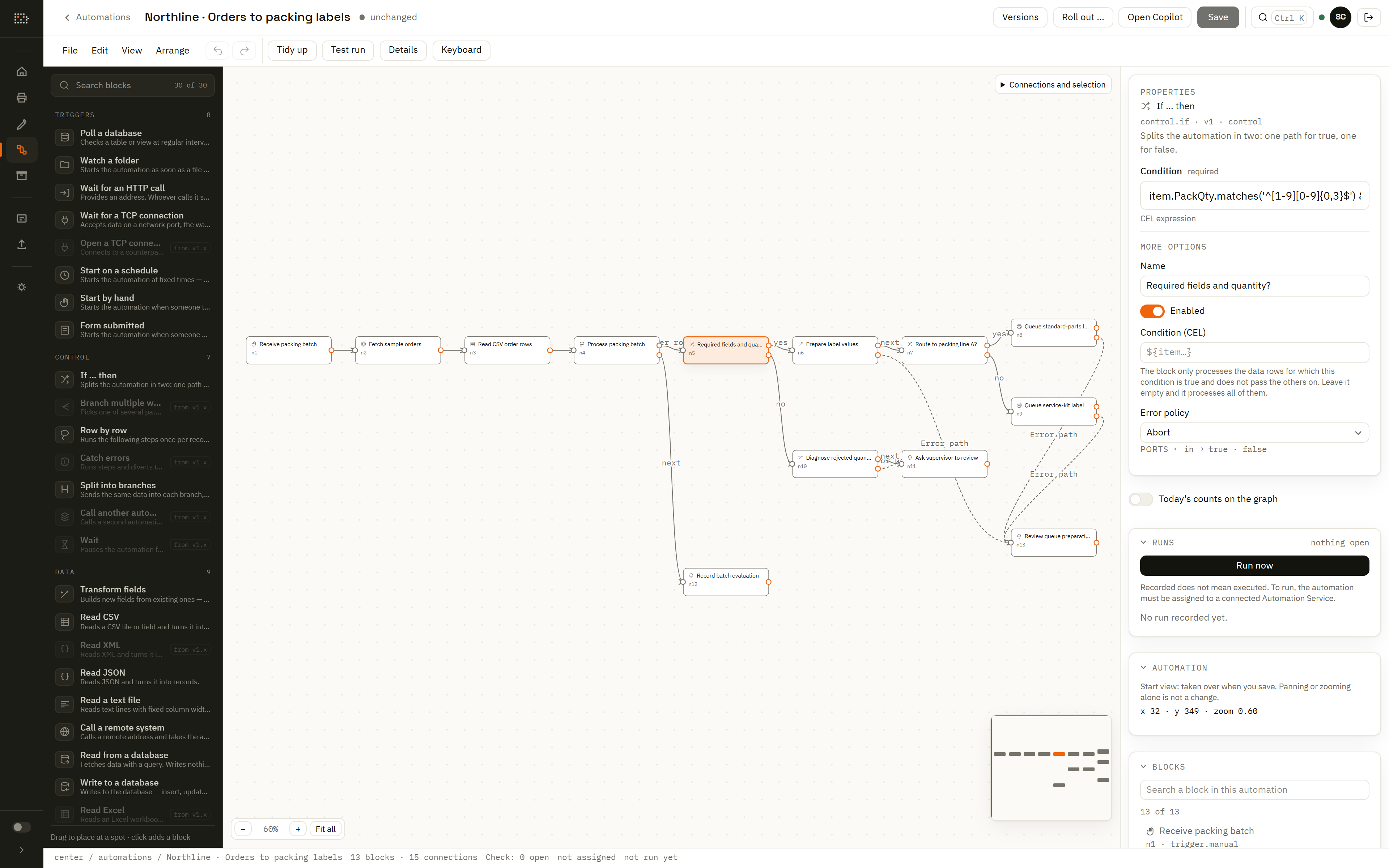
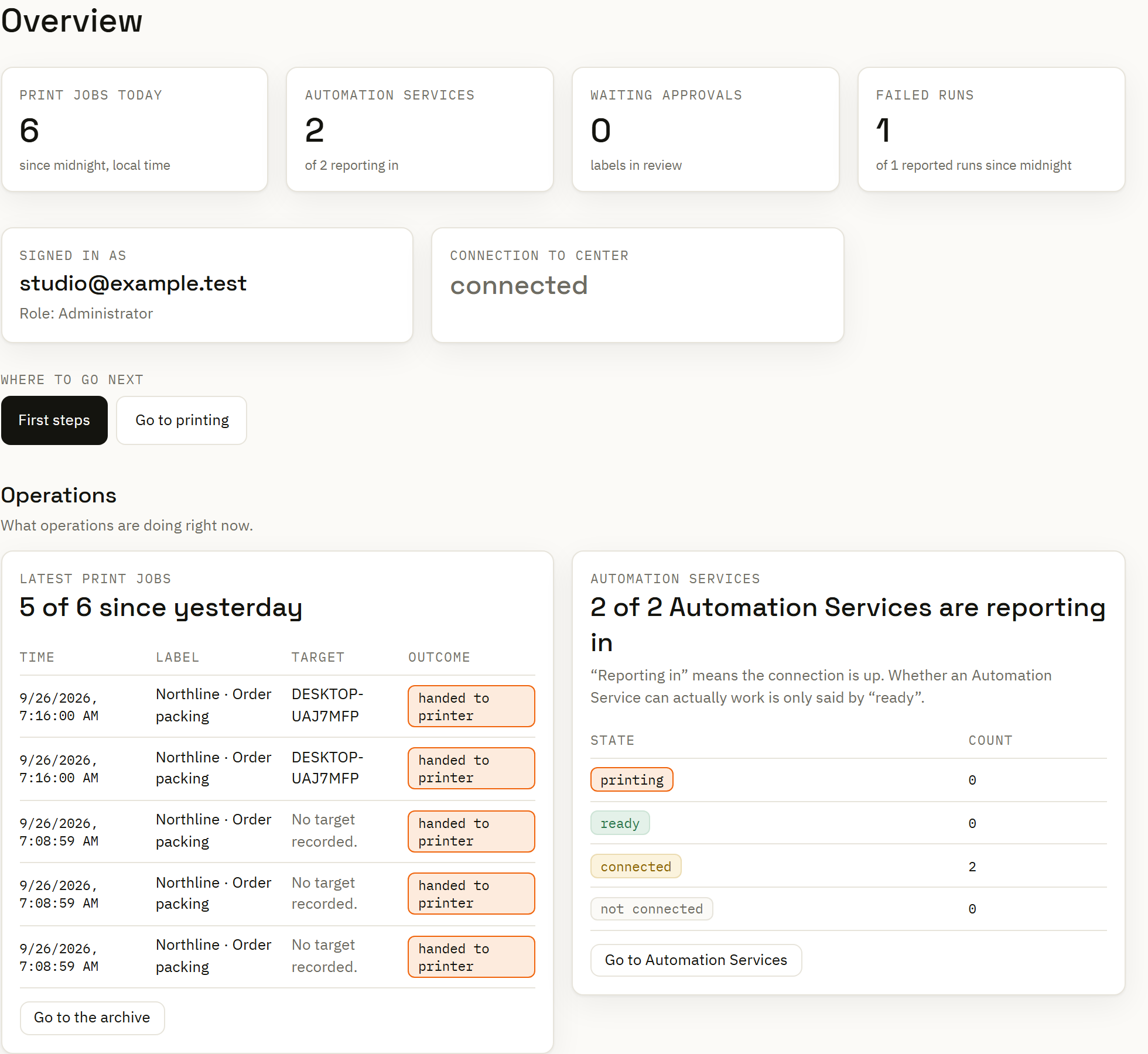
Actual product interface · synthetic Northline Parts data. Select any image to inspect it.
AI-native at the core
Give an agent the tools to build labels, construct automations and investigate printing problems. OpenLabelEngine makes the documents, previews and controls available through native MCP.
Labels, automations and forms have defined schemas and stable IDs. Agents can work on specific objects, nodes and fields.
Discover permitted Center operations, read document schemas and request real rendered previews through your agent's MCP client.
Keep versions, validation and role checks in the workflow. By default, agent-authored labels and forms need human approval; new automation deployments do too.
Create
Ask for a part number, lot and barcode. Start from a template, let the agent shape the document, then inspect the rendered result.
Automate
Have an agent assemble supported nodes, map order fields and add checks. Review the graph and try sample data before deployment.
Observe
Configure an external agent to poll operating status or receive supported webhook events, investigate failures and propose fixes for review. You provide the agent, schedule and notification rules.
Start with what you need
Print fully automatically from connected data, or let an operator print manually through a form. Use either mode—or both—in the same installation. The same path runs from one printer in one location to many printers across locations.
01 / A small team, a first label
Build the label in the Designer. The operator enters or scans values in a form, checks the preview and starts printing in Print Center. The Center can print directly to a reachable, supported network printer. A Runner is optional.
Explore printing in the Center02 / More orders, fewer repeated steps
A configured trigger starts printing automatically, without an operator submitting each job. Read business data, map it to a label and check required fields and valid quantities. In this example, a positive quantity continues to print; an invalid quantity follows a review branch. The Automation is the saved workflow; you choose where it runs.
Follow an order-processing scenario03 / More sites, one coordinated operation
What begins as one printer in one location can become many sites. Choose a document version in the Center, with review where configured, and assign it to each site service group. Each Automation Service (Runner) stays beside the printers at that location—one printer or thousands—and reports state back. The two sites below show the pattern, not a live fleet count.
Explore the multi-site workflow24 seconds · one story, three chapters · no loop
Label Designer
Build the label around your data. Place text and barcodes, inspect object settings, and check the rendered result before the design reaches a station.
Explore the Label Designer →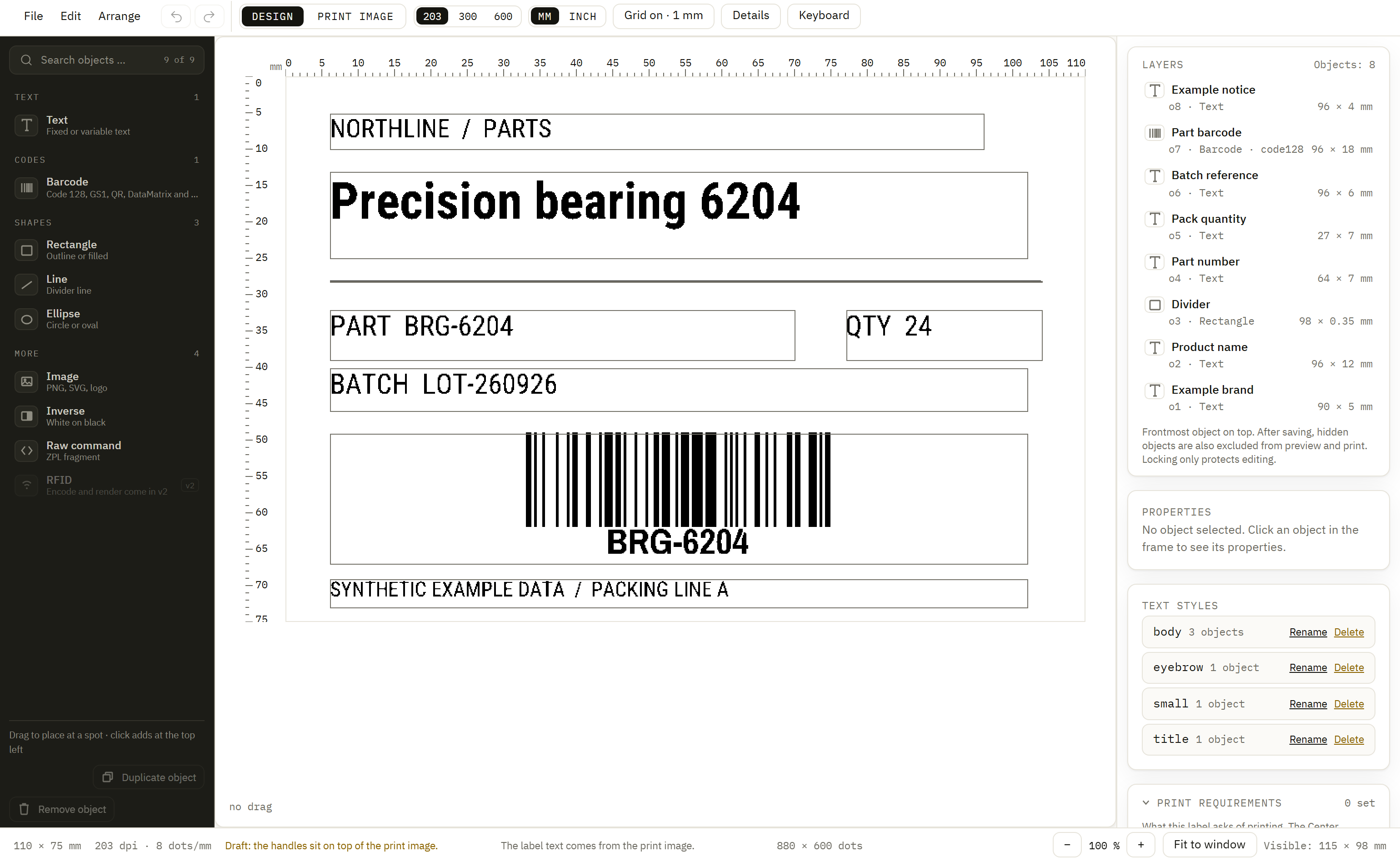
Visual print automation
Once configured, a trigger starts the workflow: read incoming records, prepare label values, apply checks and send accepted work to the printer automatically. No operator needs to fill out a form or click Print for each job. Route exceptions for review.
Follow the order-to-label scenario →From a useful design to daily work
Reusable labels, variable values and rendered previews.
Build the label →An operator enters or scans values, checks the preview and starts the print.
Guide the operator →Business data or a configured trigger starts the workflow and sends accepted records to printing.
Connect the workflow →Service groups, deployed versions and local print queues.
Run near your printers →Rendered comparisons, distribution state and print history.
Follow the result →Import diagnostics, versioned documents and API access.
Bring existing work forward →Across the operation
Keep shared designs and workflows in the Center. Assign a specific version to a service group, then inspect the group’s reported application state.
In the Northline example, Vienna packing and Brno dispatch use separate service groups. A saved edit becomes operational through an explicit deployment.
Explore the two-site scenario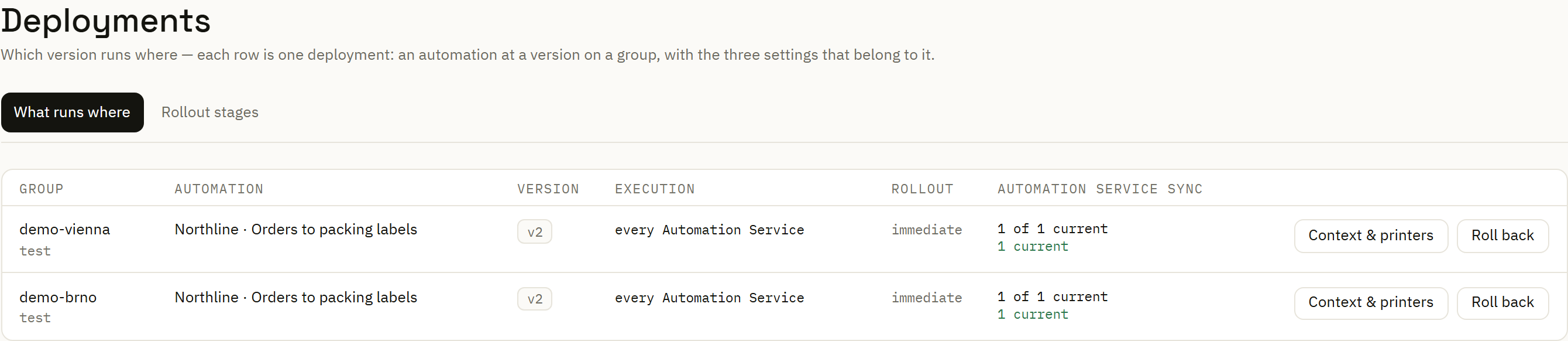
Start from your operation
Follow source data, mapping, branches and print requests.
ERP data to labels → Warehouse teamExplore station inputs, label preview and batch work.
Warehouse printing → Operations teamSee how documents, groups and local services fit together.
Multi-site labeling → Migration teamStart with an import, inspect diagnostics and review the result.
Plan a migration →After the print request
Open a job’s record to inspect its context and rendered output. Use the reported state to decide what needs attention and whether a reprint is appropriate.
A sent job and a confirmed result are different states. The record keeps that distinction visible for the print path you use.
Explore print traceability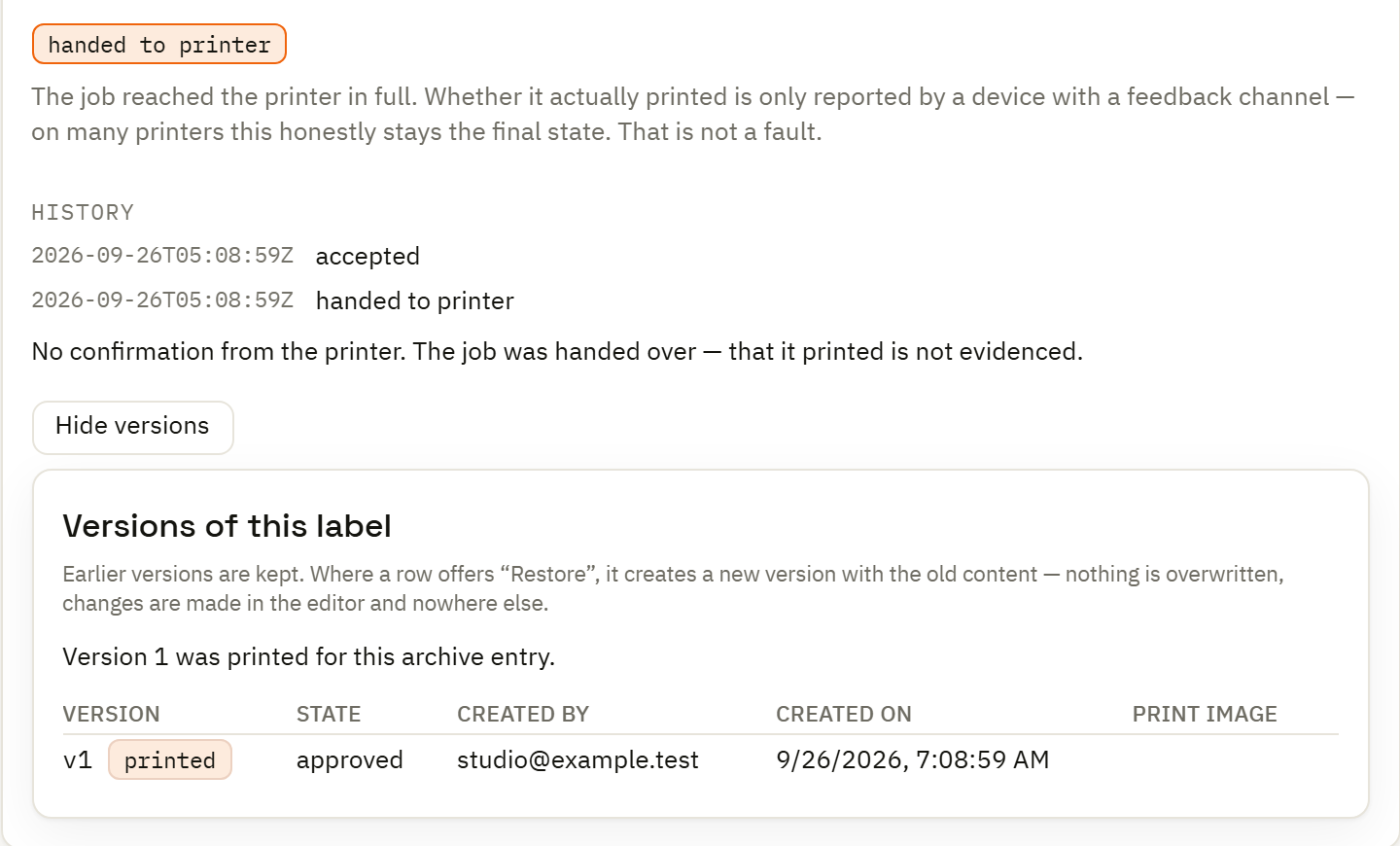
Your first workflow
Choose a representative label, its input data and a print path. The quickstart and compatibility guide help you turn a first look into a useful evaluation.