Operator guide
Check one label before printing more.
Open the right form, check the values and request one label. Read the result before you repeat the action or increase the quantity.
You need a Center account with the required permissions, an available label or assigned form, and a configured printer. Ask the person who manages your station if any of these is missing.
Sign in and open the task
Open your Center address. In Print Center, choose the label, or open the saved form assigned to your station. A kiosk link opens a focused version of that form. The form needs a connection to the Center.
Enter the requested values
Check the product, part number and batch. Fill every required field and resolve the messages beside the inputs. Use scanning where the station's form is configured for it.
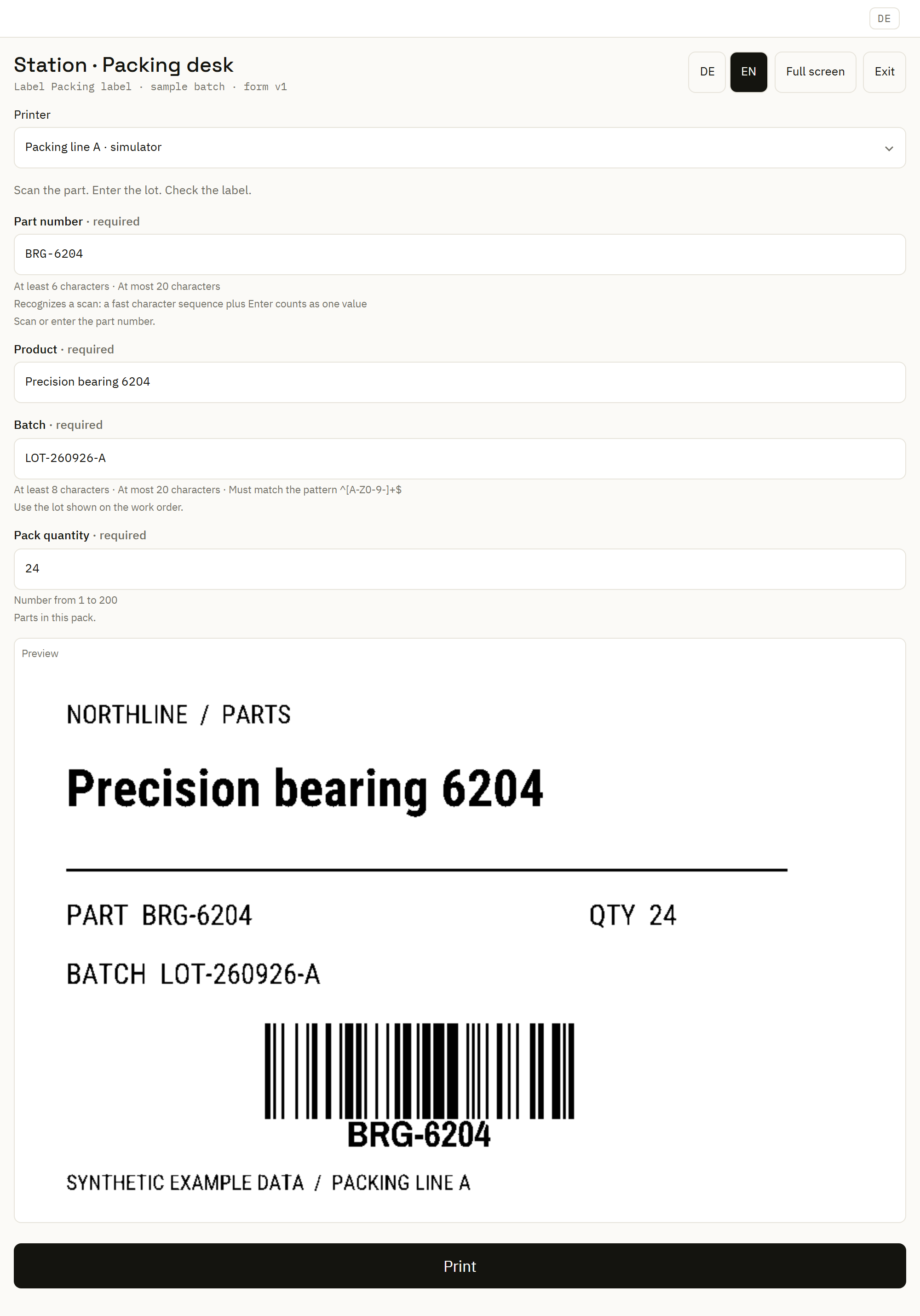
The example uses Northline Parts, product “Precision bearing 6204”, part “BRG-6204” and batch “LOT-260926”. These are synthetic values for an evaluation.
Review the label
A saved form with a preview field shows the rendered label as you enter values. Check its text and barcode content. Generated label inputs and custom forms can have different layouts. If your form has no preview, ask the label owner to review the design before the first run.
Check the printer and number of copies
Confirm the selected destination is your station's printer. Start with one label copy. “Pack quantity 24” is a value printed on the example label; it does not mean you should request 24 labels.
If the destination is unavailable or cannot accept the request, read the message and contact the station owner. See printer connection requirements for setup details.
Submit the intended action
For a print form, select its Print action once and read the response. Some saved forms submit data to an automation instead. A successful submission means the data was accepted for that workflow; check its later print result separately.
Review the result and the actual label
Inspect the result in Print Center and the print archive. For work sent through an Automation Service, its detail view also shows jobs and activity. On a physical printer, check the output's content, position and barcode readability before sending more.
Read the state before repeating
Sent means the stream or queue handoff succeeded. Confirmed requires a capable target's acknowledgement. Held or unknown means you need to investigate what happened. None of these states replaces a physical quality check.
A simulator is useful for reviewing the software path; it supplies no physical label to inspect.
Keep the request identifier, label version, destination and message if you need help. Follow the recovery guide before requesting a replacement after an uncertain result.