Installation
Put the Center and print services in the right places.
Install the shared workspace once. Add an Automation Service wherever it can reach your printers and data. Both can run on the same machine for a small installation.
Choose a build and installation path
Begin with the package and instructions supplied for your evaluation. Record its version and checksum. The paths below describe the current implementation reviewed on 26 September 2026; they do not identify a published release or a download location.
| Component | Implemented package path | Prepare |
|---|---|---|
| Windows Center | Windows x64 ZIP | PowerShell 5.1 or later; a permanent installation folder. |
| Linux Center | Linux x64 container image archive | Docker; persistent storage; reachable web and Runner gateway addresses. |
| Automation Service | Center-generated Windows x64 ZIP or Linux x64/ARM64 archive | Access to the Center, printer and required data. Linux installation uses systemd. |
SQLite is the default Center database; PostgreSQL is configurable. Check the supplied package's checksum manifest and, for a Windows ZIP, its SIGNATUR.txt. Signing is a property of that package. The current packaging path does not establish availability of a signed MSI or a Debian package.
Windows: start from the supplied ZIP
- Extract the package to its permanent folder, such as
C:\OpenLabelEngine. - Open PowerShell in that folder and run the included script:
.\install.ps1The default web address is http://localhost:8080/. Use -Port 8090 only if you need another web port; it does not change the Runner gateway. -OhneAutostart disables autostart and -NichtStarten sets up without starting.
Plan for a restart
This Center installer creates a scheduled task that starts when the installing user signs in. A reboot without that sign-in does not start the Center. Account for this before choosing it for unattended operation.
With the default configuration, openlabelengine.db is in the program folder, while uploaded files and credential.key are under data. Keep both locations in your backup plan.
.\center.exe --version
.\center.exe --help
Linux: use the supplied image archive
If your build includes center-image.tar and its checksum file, verify and load that exact image:
sha256sum -c center-image.tar.sha256
docker load -i center-image.tar
For an evaluation on this machine, replace IMAGE_FROM_DOCKER_LOAD below with the exact image reference returned by the load command:
docker run -d --name ole-center --restart unless-stopped \
  -p 127.0.0.1:8080:8080 -p 127.0.0.1:9443:9443 \
  -v ole-center-data:/data \
  IMAGE_FROM_DOCKER_LOAD
Open http://localhost:8080/. This example exposes both ports only on the local machine and keeps data in a named volume. Container removal without persistent storage loses the installation's data.
For remote machines, configure HTTPS as described below, publish its port and the Runner gateway on the intended network interfaces, and set OLE_RUNNER_GW_HOSTS to the names and addresses the services will use.
The source installation guide describes this image configuration; it does not record a complete enrollment from a second machine for that image. Include that connection in your evaluation.
Building the Center with Docker Compose
With access to the matching source and its build prerequisites, the documented entry point is:
cd deploy
docker compose up -d --build
The current source Compose file publishes the web port only. It does not publish the Runner gateway or include Runner binaries for generated installer packages. Remote-service setup needs those pieces configured separately. The matching deploy/README.md also describes the PostgreSQL profile.
Make the addresses reachable and trusted
| Connection | Configuration | Purpose |
|---|---|---|
| Web and API | OLE_HTTP_ADDR, default :8080 | Local browser access. For remote access, configure HTTPS. |
| Browser HTTPS | OLE_HTTPS_ADDR, for example :8443 | Remote browser sessions and enrollment. Configure a certificate trusted by the clients. |
| Runner gateway | OLE_RUNNER_GW_ADDR, default :9443 | Service-initiated connection with mutual certificate authentication. |
A service on another machine needs access to both the web/API address for enrollment and the gateway for its ongoing connection. Use OLE_HTTPS_CERT_FILE and OLE_HTTPS_KEY_FILE together for your PEM certificate and key, or place a correctly configured HTTPS reverse proxy in front of the web listener.
The Center can issue its own browser certificate when no certificate files are supplied. Enrollment still uses the service machine's certificate trust store, so that certificate must be trusted there. A browser exception alone does not establish that trust.
The Runner gateway terminates its own mutual TLS connection; a proxy may pass its TCP traffic through without terminating it. Enabling HTTPS leaves the HTTP listener active. Set OLE_HTTP_ADDR=127.0.0.1:8080 when HTTP should be local only. Configured local automation triggers have their own network requirements.
Complete setup and connect a service
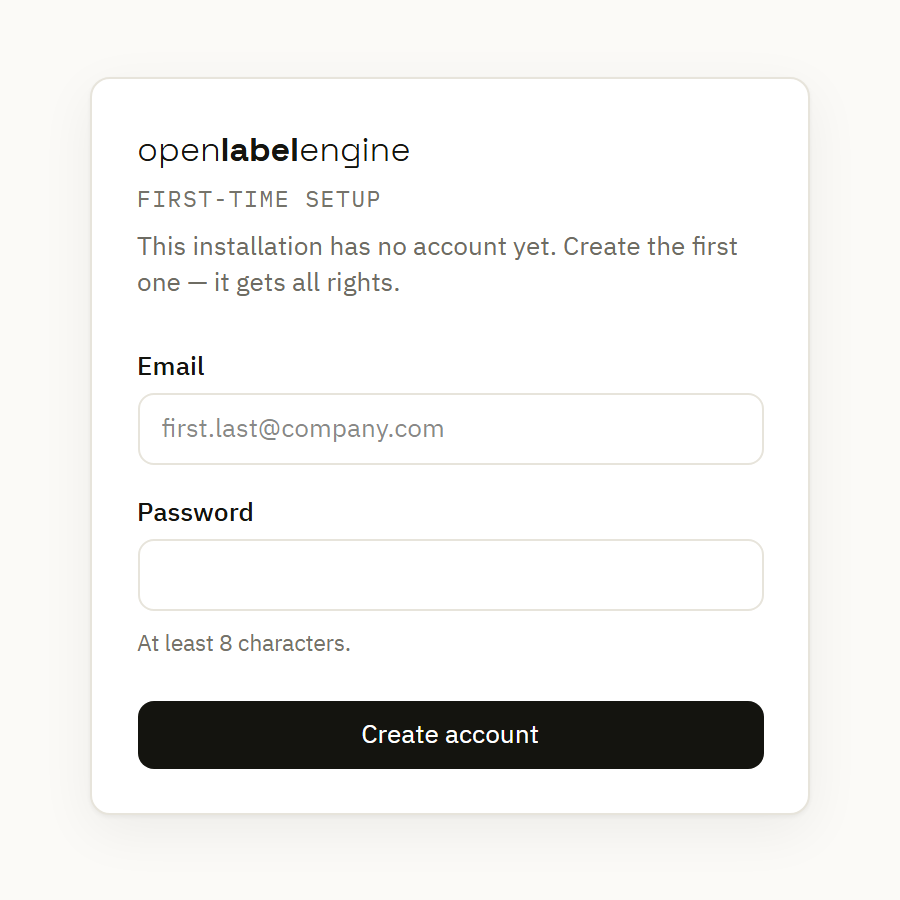
Create the first account
Open the Center and complete initial setup. There is no default password. Save the offered master-key export separately so stored credentials can be recovered with a backup.
Generate a service package
Open Automation Services and its setup screen. Create a group, select the target operating system and supply the Center address reachable from that machine. Including the service binary requires that the Center has the matching artifact.
Install and approve
Run the generated package on the target machine, then approve its pending enrollment in the Center. Follow the Automation Service guide for operating-system details and version distribution.
Evaluate one label
Choose a printer connection and follow the evaluation quickstart. Record the actual result before expanding the installation.